
Installing RASON Runner
For use with Microsoft Power BI and Microsoft Excel
RASON Runner is required for executing RASON models inside Power BI and Excel. Both model builders and runtime users must complete this step.
To install RASON Runner, simply run the program RASONRunnerSetup.exe, (see the Download tab) which installs all of the RASON Runner program and example files. (Examples files are installed into C:\ProgramData\Frontline Systems\Examples\ExcelRunner and \PowerBI.) RASONRunnerSetup.exe checks your system, detects what version of Office you are running (32-bit or 64-bit) and then runs the appropriate version.
Installation Instructions
When you run the setup program, your antivirus software or Windows security settings may display a warning message, such as:
[Reason such as new/unknown program]. Are you sure you want to run this software?
You may safely click Run in response to this message. The standard Windows Installer dialog will appear briefly.
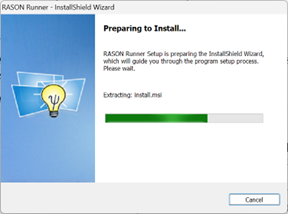
Next, a dialog box like the one shown below should appear. Note that RASON Desktop is compatible with Power BI Desktop and Excel Desktop. It is not compatible with Power BI Service or Excel for Mac or Web.
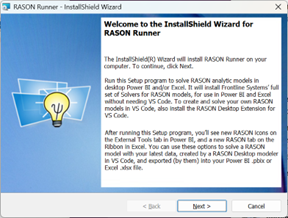
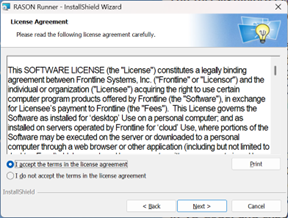
Next, the Setup program will ask if you accept Frontline’s software license agreement. You must click “I accept” and Next in order to be able to proceed.
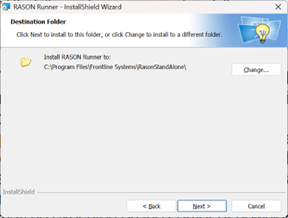
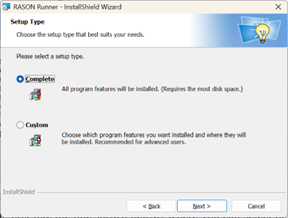
The Setup program then displays a dialog box like the one shown below, where you can select or confirm the folder to which files will be copied [normally C:\Program Files\Frontline Systems\RASONStandAlone (for both 32 and 64-bit Excel). In most cases, you can leave the default feature selection and installation folder unchanged, then click Next to continue.
If you want to export data/RASON models to both Excel and Power BI, then leave Complete selected and click Next.
If you only want to export data/RASON models from Excel or Power BI, but not both, then select Custom and click Next.
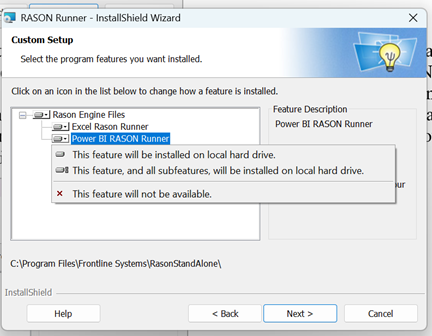
The Custom Setup dialog lets you choose which RASON Runner features will be installed. By default, the Rason Engine Files feature is selected, which installs the core files required to install RASON Runner for both Excel and Power BI. To install only the Excel RASON Runner or only the Power BI RASON Runner, click the + next to Rason Engine Files to expand the available sub features. To only install the Excel RASON Runner, click the down arrow to the left of Power BI RASON Runner and select the last option on the menu, “X This feature will not be available.”
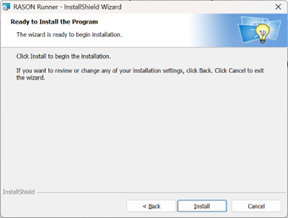
You’ll see a dialog confirming that the preliminary steps are complete, and the installation is ready to begin. Click Install.
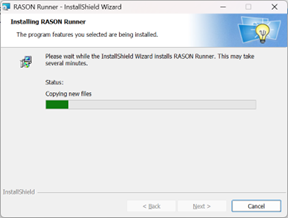
After you click Install, the selected RASON Runner files are installed.
When the installation is complete, you’ll see a dialog box like the one below. Click Finish to exit the installation wizard.
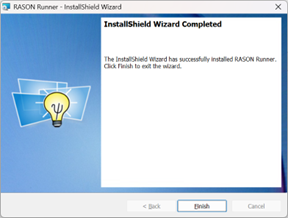
RASON Runner is now installed. With your trial or paid license, you can now solve exported RASON models in Microsoft Power BI and Microsoft Excel. Simply click “Finish”.
Once installation is complete, open Microsoft Power BI and/or Microsoft Excel to confirm integration:
- In Power BI, verify that RASON Login and RASON Solve appear under Home → External Tools.
- In Excel, verify that a RASON tab appears in the ribbon.