
If you've used Visual Basic (VBA) to control Excel through its objects such as Worksheets, Ranges and Cells, you know how powerful and convenient this can be for creating custom applications. The same power to create custom risk analysis applications is available to you through Risk Solver's VBA Object Model. And everything you can do with Risk Solver in VBA can be a part of your deployed application workbook -- you need just one file RSolve32.xll, the Risk Solver Engine add-in, to run your application.
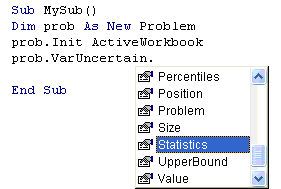
When you include a reference in your VBA module to "Risk Solver Engine V8.0 Type Library," all of the Risk Solver objects are available -- they even appear in IntelliSense prompting:
| Risk Solver makes available a hierarchy of objects for describing Monte Carlo simulation problems, pictured to the right. This object model is a simplified subset of the object hierarchy offered by Frontline's Solver SDK Platform, which is used to build custom applications in C/C++, Visual Basic, VB.NET, Java or MATLAB. |
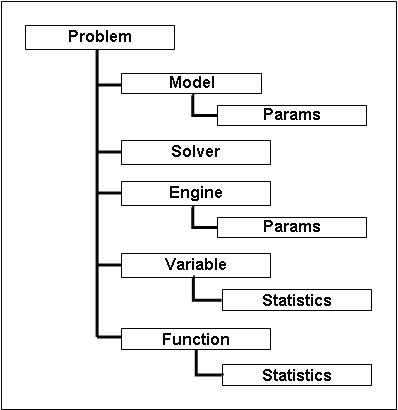
The Problem object represents the whole problem, and the Model object represents the internal structure of the model, which in Risk Solver is defined by your formulas on the spreadsheet. The Solver object represents the Monte Carlo process -- you call its Simulate method to perform a simulation. The Engine object represents the Monte Carlo simulation engine -- its parameters include the sampling method, for example. A Variable object represents a range of one or more contiguous cells that contains uncertain variables, while a Function object represents a range of cells that contains uncertain functions. You may have a collection of Variable objects, and a collection of Function objects in one Problem.
Using Risk Solver Objects
You use the Risk Solver Object Model by first creating an instance of a Problem, and initializing it with the simulation model defined in your Excel workbook. Once you have an initialized Problem object, you can for example:
- Set Solver and Engine parameters such as the number of trials per simulation, the sampling method, and the random seed.
- Perform a simulation, using either the high-speed PSI Interpreter or the Excel Interpreter for the trials.
- Get results of the simulation, by accessing properties of the Variable and Function objects, and of their child Statistics objects.
Below is a simple example that could be linked to a command button on the worksheet:
Private Sub CommandButton3_Click()

   Dim prob As New Problem

   prob.Init ActiveWorkbook

   prob.Solver.NumTrials = 5000

   prob.Engine.Params("SamplingMethod") = 2

   prob.Solver.Simulate

   For i = 0 To prob.Functions.Count - 1

      MsgBox prob.Functions(i).Statistics.Mean(0)

   Next i

   Set prob = Nothing

End Sub
The first two lines create an instance of a Problem, and initialize it with the simulation model defined in your Excel workbook. The next two lines set the number of trials in the simulation to 5000, and the sampling method to Latin Hypercube. The fifth line performs a simulation.
The for-loop in the next three lines will step through the Function objects - assuming, for simplicity here, that each Function object represents just one cell - and display the Mean property of the child Statistics object (the mean or average value of the function across all trials) for each one.