
Step 4: Solve the RASON Optimization model
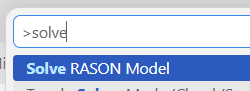
Click Solve RASON Model in the bottom left of the extension, in Visual Studio Code, to solve the RASON optimization model. The model can also be solved from the command palette by typing Solve RASON Model.
Figure 4a: Solve the model by clicking Solve RASON Model
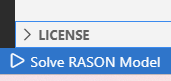
Figure 4b: Solve the model via the Command Palette
Step 5: Console Panel
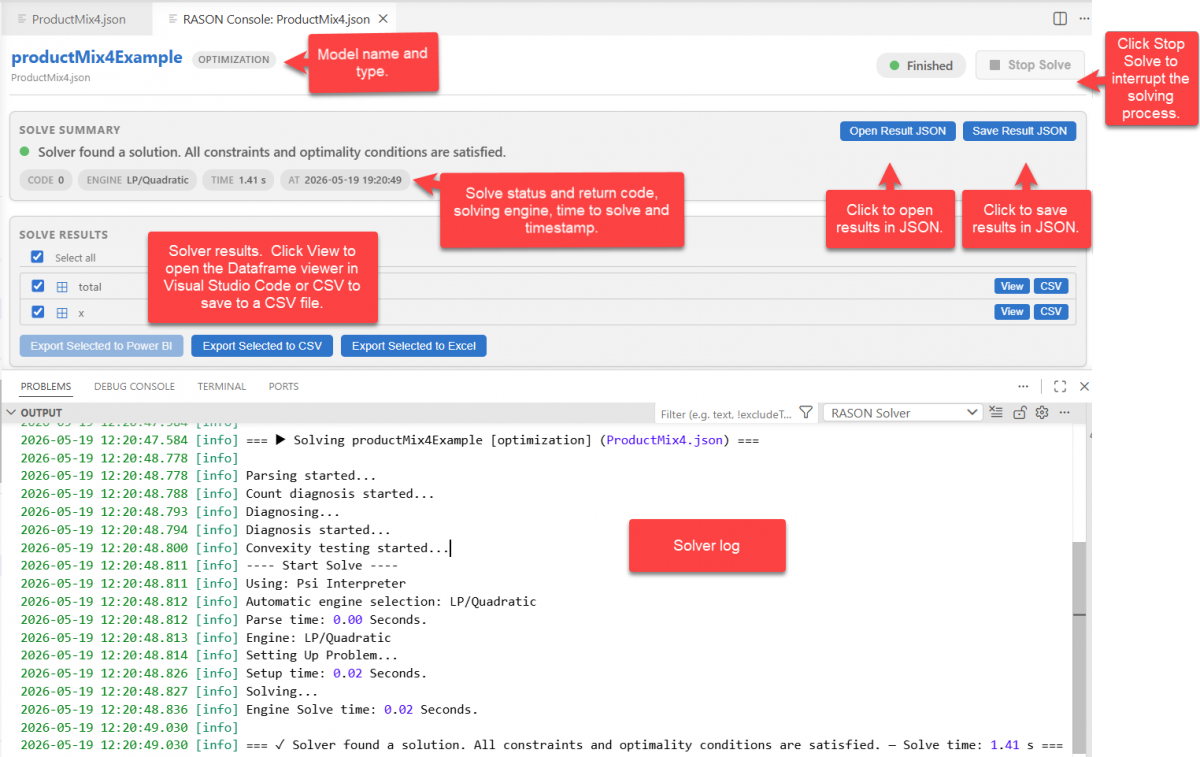
After clicking Solve RASON Model, the Console pane appears and displays information about the solve process as well as the results ready for export. Upon successful completion, the console displays a message such as “Solver found a solution. All constraints and optimality conditions are satisfied.”, indicating that an optimal solution has been found.
When the model is executed in the RASON Desktop extension, within Visual Studio Code, the solve process is performed on the RASON.net server. The model and its associated data are sent to the server, where the optimization is carried out, and the results are then returned to the RASON Desktop extension. This is true even when RASON Solver Mode is set to Local.
Figure 5: Console pane showing solver progress and the final message indicating that an optimal solution was found.
Step 6: View the Results
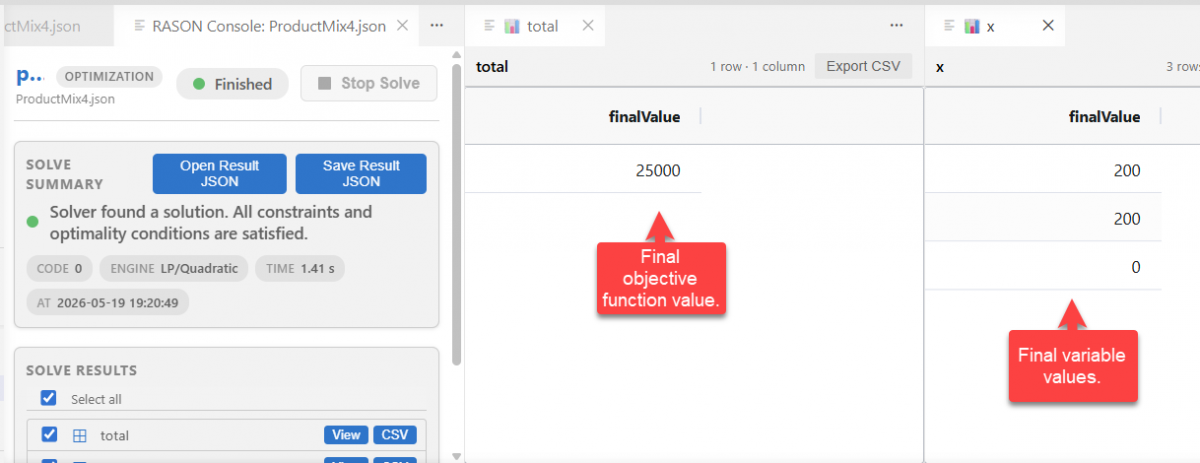
After solving the model, the results are displayed under Solve Results. The solution includes the values of the decision variables (production quantities) and the objective function (total profit). These values represent the optimal solution that satisfies all constraints. Recall that these values are included in the output due to the use of the “finalValue” property utilized in the “variables” and “objective” sections in the RASON example model.
- Click View for both “total” and “x” to view the final objective function and variable values in the Dataframe Viewer.
Figure 6: Dataframe Viewer
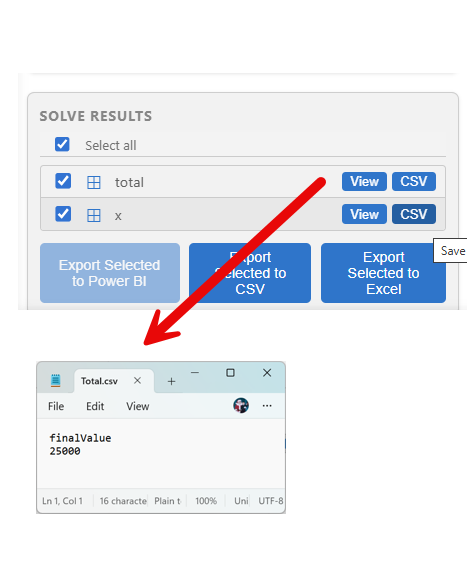
- Click CSV to export a dataframe to a CSV file.
Figure 7: Exported results shown in a CSV file.
- Results may also be opened and saved to a JSON file.
Figure 8: Click Open Result JSON to view results within Visual Code.
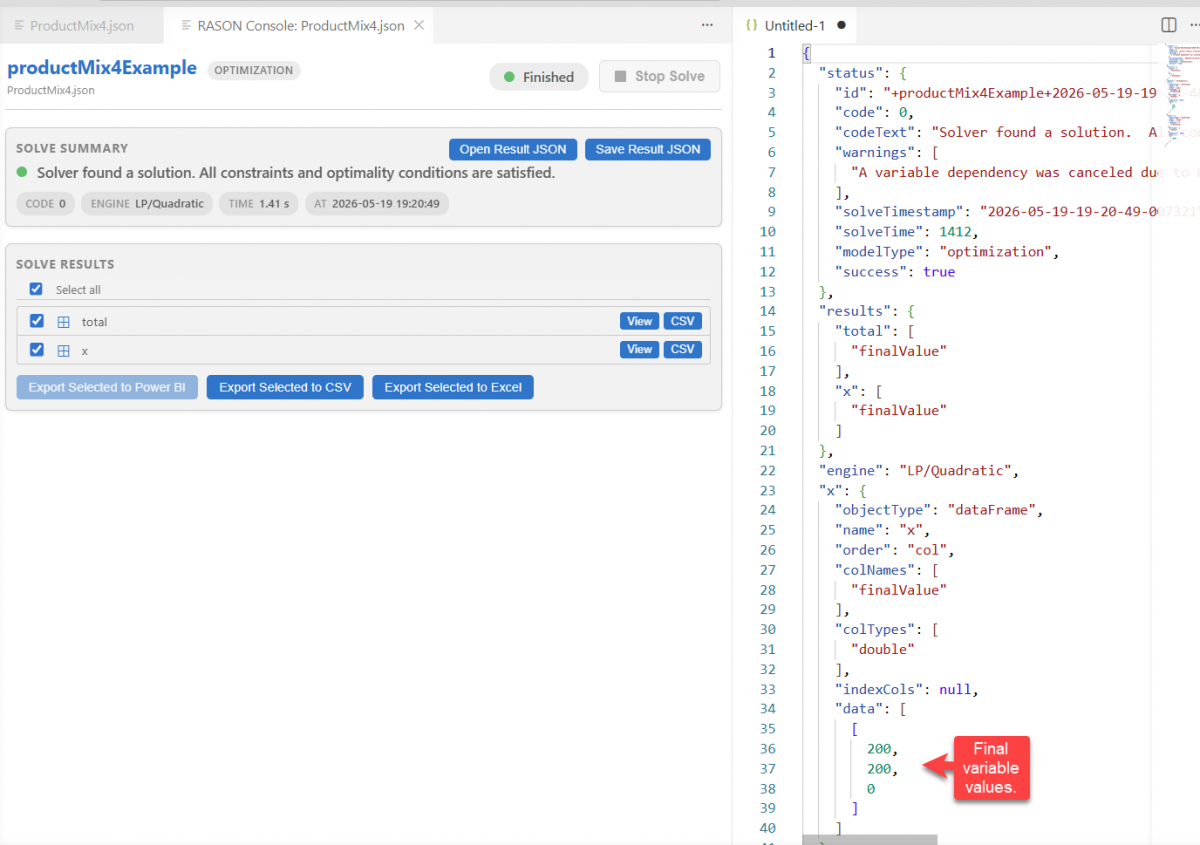
The complete results are shown below. For more information on the RASON modeling language, see the RASON User Guide available for download from www.RASON.com, on the Help tab.
{
  "status": {
    "id": "+productMix4Example+2026-05-19-19-20-49-186683",
    "code": 0,
    "codeText": "Solver found a solution.  All constraints and optimality conditions are satisfied.",
    "solveTimestamp": "2026-05-19-19-20-49-301233",
    "solveTime": 1.41,
    "modelType": "optimization",
    "success": true
  },
  "results": {
    "total": [ "finalValue" ],
    "x": [ "finalValue" ]
  },
  "engine": "LP/quadratic Solver",
  "x": {
    "objectType": "dataFrame",
    "name": "x",
    "order": "col",
    "colNames": [ "finalValue" ],
    "colTypes": [ "double" ],
    "indexCols": null,
    "data": [
      [ 200, 200, 0 ]
    ]
  },
  "total": {
    "objectType": "dataFrame",
    "name": "total",
    "order": "col",
    "colNames": [ "finalValue" ],
    "colTypes": [ "double" ],
    "indexCols": null,
    "data": [
      [ 25000 ]
    ]
  }
}
Next: Export the Results
Continue to the next page to export the ProductMix4 results from RASON Desktop into Microsoft Power BI or Excel for reporting and visualization.