The RASONRunnerSetup.exe installer must be run first to add RASON Solve under External Tools in Microsoft Power BI and to add the RASON tab in Microsoft Excel. For more information, see the previous chapter on installing RASON Runner.
Step 12: Exporting Model to Power BI to be solved in Power BI.
In addition to exporting results, RASON Desktop allows you to export the full model to Power BI, where it can be executed directly within a report. This enables users to run the model, explore different scenarios, and analyze results without returning to Visual Studio Code.
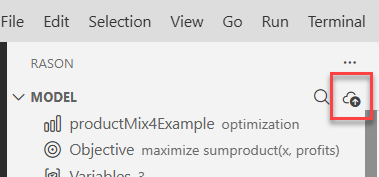
To export a model to Power BI, return to the RASON Desktop extension in Visual Studio Code, select the ProductMix4.json tab and click the Export Model button in the Visual Studio Code interface.
Figure 15: Export RASON Model to Power BI
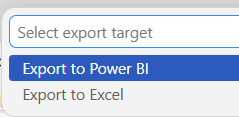
Then select Export to Power BI at the top of screen.
Figure 16: Select Export to Power BI
Notice the message in Visual Studio Code indicating the model export was successful.
Figure 17: Model export successful.

Once exported, the model can be executed directly within Power BI, allowing users to analyze results and explore different scenarios within Power BI.
Step 13: Solve the model in Power BI
To clearly observe the results returned from Power BI, set the finalValue fields for the x and total tables, the decision variables and objective function, to 0.
Note: This can be easily done inside Power Query using Transform – Replace Values, just search for 25,000 in the “total” table and 200 in the “x” table and replace both with 0. Close Power Query to save the changes. This ensures that updated values can be easily identified after the model is executed.
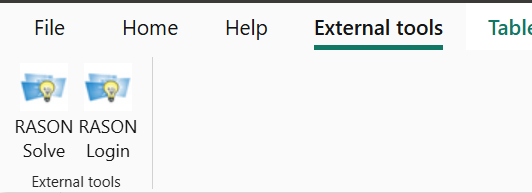
Click Refresh, to refresh the tables and then click External Tools – Solve. The final values for the decision variables and the objective function will be exported automatically to the x and total arrays, respectively.
See the previous chapter on installation for information on the RASON Login icon.
Figure 18: Click External Tools - Solve to solve the model exported to the Power BI report
A message indicating the solve is in progress will appear. When the model is executed in the RASON Desktop extension, the solve process is performed on the RASON.net server. The model and its associated data are sent to the server, where the optimization is carried out, and the results are then returned to Power BI for display. The dialog will clear once the solving process is finished.
Figure 19: Solving: Power BI Model solving log dialog
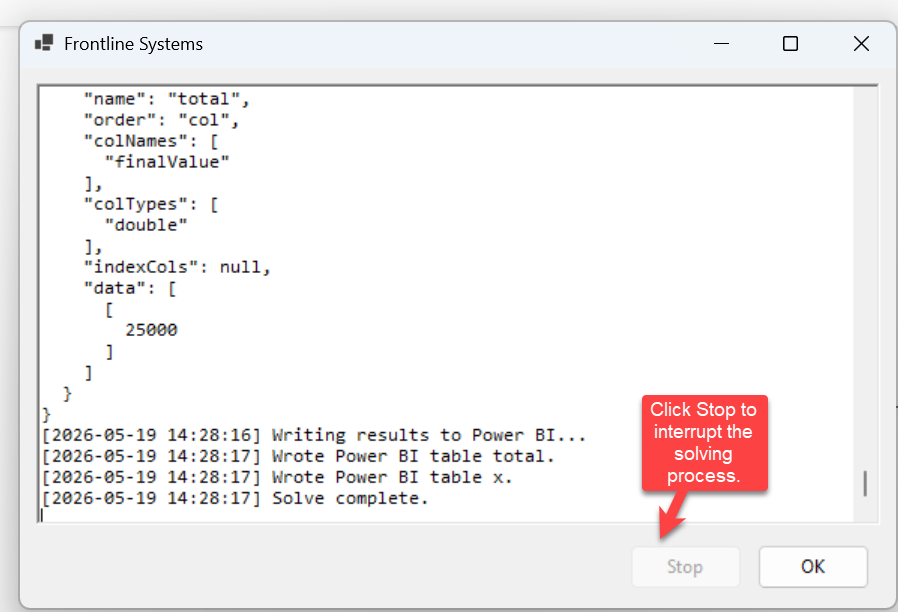
Note: This dialog remains open for 7 seconds by default, then closes automatically. This behavior may be changed by editing the --auto-close value in Frontline.pbitool.json. For example, --auto-close 7 keeps the dialog open for 7 seconds, while --auto-close 0 keeps it open until you close it manually. The file, Frontline.pbitool.json, is installed, by default, into: C:\Program Files (x86)\Common Files\Microsoft Shared\Power BI Desktop\External Tool.
Step 14: Viewing the results.
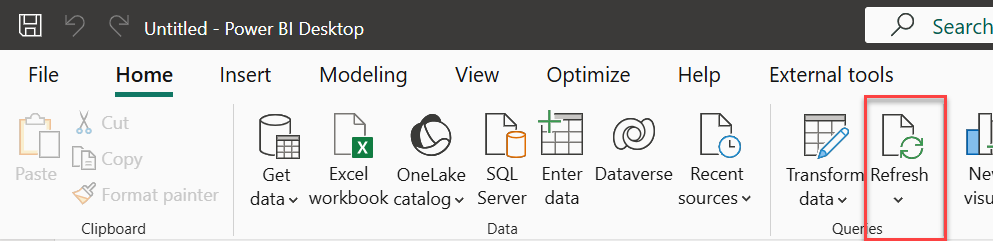
Once the solving process has completed, a refresh may be required to update both the x and total tables.
Figure 20: Click Refresh once solving completed
Click Table View on the left menu bar to view the updated data.
Figure 21: View updated results
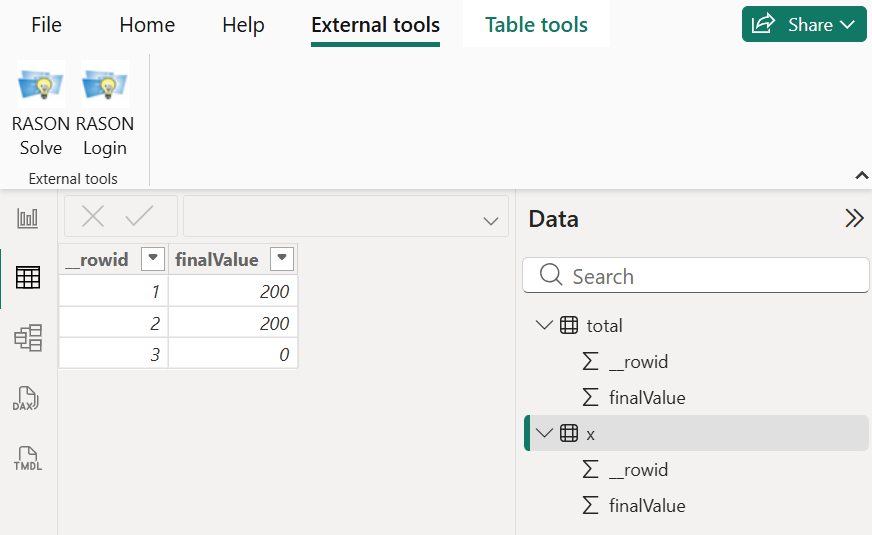
After executing the model in Power BI, the updated tables reflect the optimal solution returned from the RASON.net server. The decision variable values represent the optimal production quantities for each product, while the objective value represents the maximum achievable profit given the defined constraints. These results can be further explored using Power BI visuals to better understand the impact of constraints and the distribution of production across products.
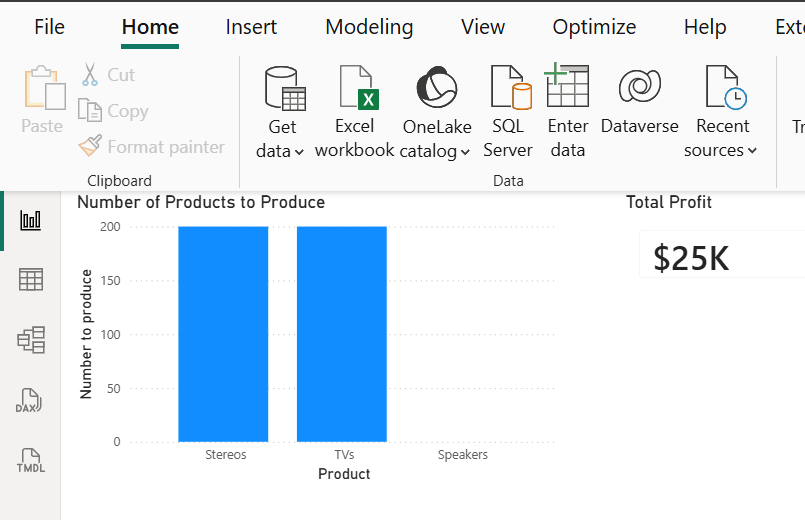
A simple Power BI visual is shown in the figure below, displaying the optimal production quantities for each product along with the final objective function value.
Figure 22: Simple Power BI Visual