
- Works with Power BI Desktop and Excel Desktop on Windows
- Create & run models in VS Code, with AI Assistance
- Monte Carlo simulation and risk analysis
- Optimization / resource allocation, every problem type
- Forecasting, data science and machine learning
- Business rules, decision trees and flows
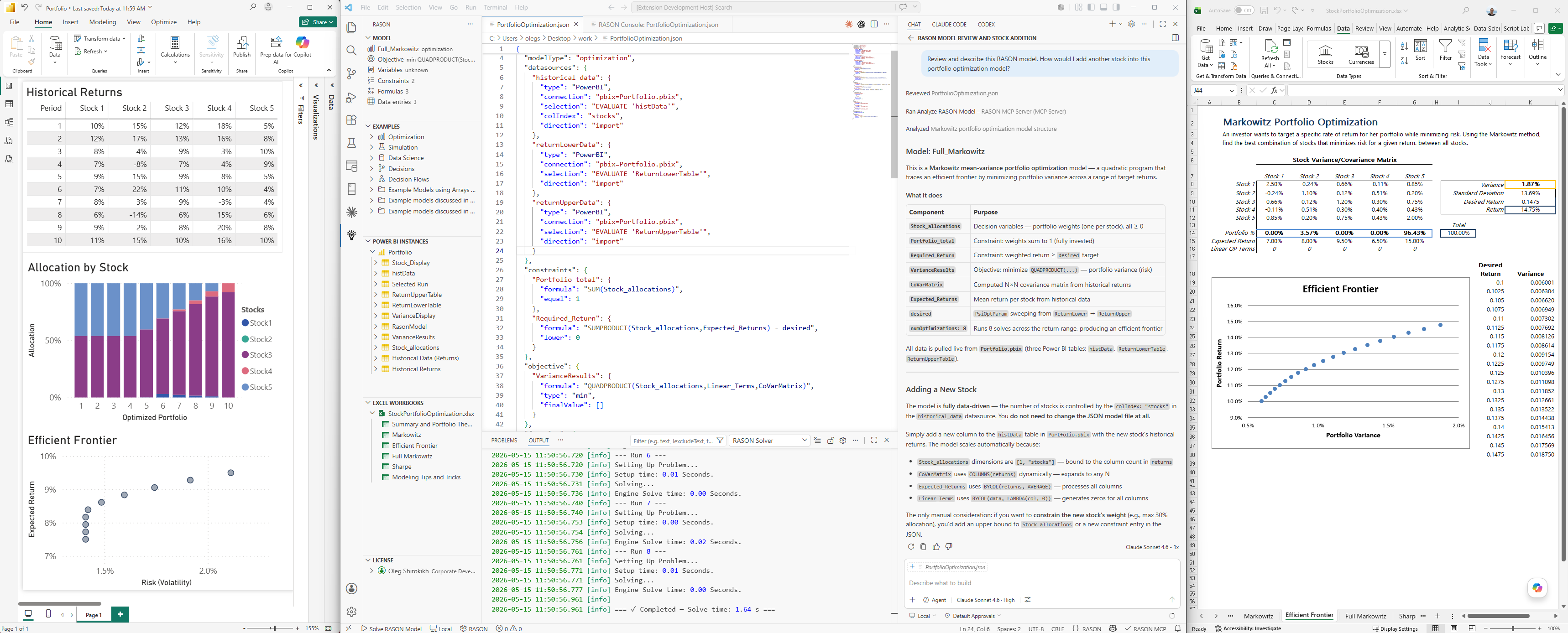
Build models that work where your data already lives
RASON Desktop connects directly to Power BI and Excel. Build your model in VS Code, solve, and results write back to your dashboard or workbook automatically after each solve. No separate environment. No manual steps between insight and action.Give your team the ability to find the answer themselves
Embed a RASON model in a Power BI dashboard or Excel workbook and anyone on your team can run it. They adjust the parameters, click Solve, and see the results update in real time. You built the model. Now it works for the whole organization.BETTER DECISIONS WITH ADVANCED ANALYTICS AND BUSINESS INTELLIGENCE
The best analytic model you build should outlast the project that started it.
Most models don't. They live in one analyst's Excel file or Python script. When the project ends, the file is archived. When the analyst moves on, the model goes with them. Nobody else can run it. Nobody maintains it.
RASON models are different. A RASON model is a structured, versioned JSON file -- saved in a model library, shareable, maintainable by multiple people. The decision logic your team built stays with the organization. It can be updated, extended, and run again next quarter.
One modeling language for every type of decision:
- Simulation and risk analysis: quantify uncertainty with Monte Carlo simulation, probability distributions, and sensitivity analysis
- Optimization: find the decision that maximizes or minimizes your objective under real-world constraints, using world-class solvers including Gurobi, Knitro, and OptQuest
- Data science and forecasting: ;identify what drives outcomes and build that evidence into your models
- Business rules: encode consistent, auditable decision logic using DMN-compatible decision tables
- Multi-stage flows: chain simulation, optimization, data science, and rules into a single connected decision workflow
You don't have to start from a blank page.
Nearly 200 example models are available directly in VS Code. GitHub Copilot and other AI tools can search those examples, adapt them to your parameters, and help you build new models. The knowledge you invest in one model compounds over time.
RASON is a high-level modeling language you can use to quickly and easily create and solve analytic models. You can use RASON tools on Windows desktops and servers, but the RASON service is especially useful if you are building web or mobile applications, and you’re familiar with RESTful web services.
RASON stands for Restful Analytic Solver® Object Notation. It offers many benefits compared to using a traditional modeling language, using Excel to create analytic models, or writing analytic models in a programming language. You can create and solve RASON models via a browser, using Frontline's REST API service -- sign up for a free account at Rason.com.
An Example Model
Below is an example RASON optimization model. Its purpose is to find the optimal location for an airline hub that serves six cities. The cities are located at the (simplified x-y) coordinates given by the dx and dy parameters in the data section. Our goal is to find the x, y coordinates of the airline hub that will minimize the distance flown to any of the cities.
{
    engineSettings : { engine : "GRG Nonlinear" },
    variables :
    {
        x : { value: 1.0, finalValue: [] },
        y : { value: 1.0, finalValue: [] },
        z : { value: 1.0, finalValue: [] }
    },
    data :
    {
        dx : { dimensions: [6], value: [1, 0.5, 2, 2, 2, 0.5] },
        dy : { dimensions: [6], value: [4,   3, 4, 2, 5,   6] }
    },
    constraints :
    {
        c : { dimensions: [6], upper: 0, formula: "sqrt((x - dx)^2 + (y - dy)^2) - z" }
    },
    "objective" :
    {
        "z" : { "type": "minimize", "finalValue": [] }
    }
}
Web developers will recognize the overall syntax as that of JSON, JavaScript Object Notation -– except that identifiers and keywords are not surrounded by double quotes, outside the “objective” section which shows an example of writing “strict JSON”. RASON doesn’t require the quotes in a model, but the result -– the optimal solution to this nonlinear model -– is always valid JSON:
{
    "status" : { "code" : 0 },
    "variables" : {
         "x" : { "finalValue" : 1.250000 },
         "y" : { "finalValue" : 4.000000 },
         "z" : { "finalValue" : 2.136001 }
    },
    "objective" : {
         "z" : { "finalValue" : 2.136001 }
    }
}
If you aren’t familiar with modeling languages, you may not realize how much the RASON language is doing for you. Note that the expression "sqrt((x - dx)^2 + (y - dy)^2) - z" is an array expression operating over all six cities. The RASON Interpreter computes not just the values of this expression, but its partial derivatives with respect to x and y – used by the nonlinear optimizer to guide the search for a solution.
Web and Mobile Applications
What if you want to define and solve a model in a mobile application written in JavaScript? Solver SDK and plug-in Solver Engines (or other optimizers) won't run directly on a mobile device, nor would they be the best solution. But it’s simple to send a model to the RASON REST Server, and get the optimal solution:
    var request = { "variables" : { ...
    "z" : { "type": "minimize", "finalValue": [] } } };
    $.post("https://rason.net/optimize", JSON.stringify(request)
    .done(function(response){
    alert(response.objective.z.finalValue);
    });
Since RASON is JSON, we can write the entire model as an object constant in JavaScript, assigned to the variable request. Then (using JQuery syntax) we make an AJAX request to the RASON Server’s REST API endpoint optimize, which means “optimize this model and immediately return the result.” When the server returns a response, the “done” function is called, and it can easily reference the final value of the objective, since the response is also JSON.
Server-Based Applications
What if you want to define and solve this model in an application on a corporate server or Web server? That's easy: Since the RASON Interpreter is embedded in Solver SDK Platform, you can simply load and run a RASON model from a text file on the server:
Problem prob = new Problem();
prob.Load("model.json");
prob.Solver.Optimize();
MessageBox.Show(prob.FcnObjective.FinalValue[0].ToString());
This C# example just hints at how you can easily access RASON model elements from code, to update data, optimize or simulate, modify the model, or monitor the solver’s progress.
What about a mixed-integer or global optimization model that might take 30 minutes – or overnight - to run? That’s easy: With a POST to rason.net/model, you can create a “model resource,” then start an optimization via GET rason.net/model/id/optimize, check on its progress at any time with GET rason.net/model/id/status, and obtain results when finished with GET rason.net/model/id/result.
Build models that connect directly to your live data.
The RASON Desktop VS Code extension is where models are built. It connects directly to your open Power BI Desktop instances and Excel workbooks. Drag columns from the RASON sidebar into your DAX queries -- the connection is built for you. When you solve, results write back to your dashboard or spreadsheet automatically.
New to VS Code? Built-in AI assistance and nearly 200 example models mean you don’t have to start from scratch or know the syntax to get a working model.
What it gives you:
- Live Power BI Desktop connection -- drag columns from the RASON sidebar into your DAX queries, write results back to your dashboard automatically after each solve
- Live Excel connection -- bind model inputs to cell ranges, write results directly into your spreadsheet, charts refresh automatically
- A smart RASON editor with syntax highlighting, IntelliSense, and real-time validation
- Nearly 200 searchable example models organized by problem type -- start from something that already works
- Starter templates for optimization, simulation, data science, decision tables, and multi-stage flows
- AI assistance via GitHub Copilot or Claude, powered by the RASON MCP Server -- describe what you need in plain language, Copilot helps you build it
- Local solving -- your data never leaves your machine unless you choose to use the cloud
- Export your finished model into your .pbix or workbook so it travels with the file when you share it
Get started: Search "RASON" in the VS Code Marketplace.
Your dashboard already shows what happened. Now it can show what to do.
When a RASON model is embedded in a Power BI report, the dashboard becomes an interactive decision tool. Managers and analysts can adjust scenario assumptions and click Solve. Charts and tables update in real time with the new results. No analyst in the loop. No re-runs. No waiting.
The model runs locally on the user's machine. No data is sent to a server. For teams with strict data security requirements, this matters.
How it works:
- You build the RASON model in VS Code and embed it in your .pbix file
- The model travels with the report -- share the file, and the model comes with it
- Users open Power BI Desktop, adjust parameters with standard controls, and click Solve in the External Tools ribbon
- RASON solves locally against the live semantic model data
- Results write back to the dashboard automatically -- visuals refresh with no manual steps
What analysts use it for:
- Simulating budget scenarios and quantifying the probability of hitting a target
- Finding the optimal allocation of resources, budget, or capacity under constraints
- Running stress tests and seeing the full distribution of outcomes, not just a single scenario
- Giving leadership a live model to interact with instead of a static presentation
Coming soon: Power BI Service support, so the same model can run in the cloud.
Your existing Excel models are closer to Power BI than you think.
If you've built simulation or optimization models in Excel, you've already done the hard work. RASON Desktop connects directly to open Excel workbooks -- bind your model to live cell ranges, solve, and push results back into your spreadsheet automatically.
Already using Analytic Solver? Analytic Solver can translate your Excel model directly into RASON. The model you've built and validated is ready to deploy to Power BI or run via REST API, without rebuilding from scratch. Your work becomes an organizational asset, not a personal file.
What Excel integration does:
- Connects directly to open Excel workbooks from VS Code
- Binds model inputs to live cell ranges -- your data stays where it is
- Writes results directly into Excel after each solve
- Refreshes charts automatically when results update
- Embeds the RASON model inside the workbook as a custom XML part so it travels with the file