Developers should begin here because these first steps take place in Visual Studio Code using the RASON Desktop extension. This section shows how to open the extension, load an example RASON model, and review the model before solving or exporting it. End users or runtime users who only need to run an already exported model in Power BI or Excel can skip ahead to the runtime user starting point, where the walkthrough explains how to use RASON Runner from the External Tools menu in Power BI or the RASON tab in Excel.

Step 1:  Open Visual Studio Code

Launch Visual Studio Code and the RASON Desktop Extension by clicking on the left menu bar. Refer to the previous chapter for details on the purpose and function of each section of the extension.

Figure 1: Visual Studio Code with the RASON Desktop extension open.

RASON Desktop Extension

Step 2:  Open the RASON Example

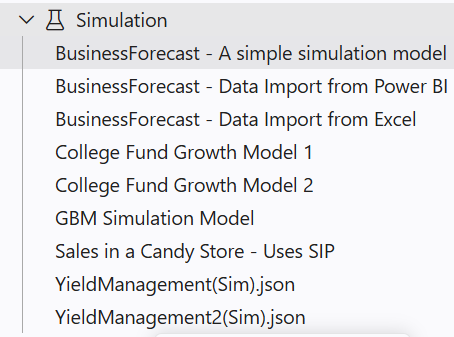
Users can open an existing RASON model, pick one from the Examples side bar or insert a starter with RASON:  Insert Templates in the command palette. This example opens the BusinessForecast example RASON Simulation model. 

Under Examples, click Simulation – BusinessForecast.json to open the Business Forecast RASON Simulation Example model. The Business Forecast model simulates future performance of a fictional business by incorporating uncertainty in key drivers, price, demand and economic growth. Instead of producing a single forecast, the model generates a range of possible outcomes, allowing users to understand both expected results and risk for Total Profit, Production Costs and Net Profit.  This example demonstrates how uncertainty in key inputs propagates through a model and produces a distribution of possible outcomes.

Note there are three results requested to be included in the output for the uncertain function, new Profit:  mean, trials, and target(100000). 

"mean": [], - Mean of the newProfit uncertain function will be included in th final results.
"trials": [], - All trial values in the simulation will be listed for this uncertain function.
"target(100000)": [] – The probability that this uncertain function is less than or equal to the value in the parenthesis, or 100,000 in this case. 

For more information on the RASON modeling language, see the RASON User Guide. 

Figure 2: Business Forecast example model open in Visual Studio Code, showing the RASON model ready for execution.

RASON Desktop Extension shown with Business Forecast example

Step 3: Use MCP Server to become a RASON Expert 

RASON Desktop includes the RASON MCP Server, giving GitHub Copilot Chat full access to RASON's modeling, analysis, and solving capabilities. The server includes a searchable library of nearly 200 example models, templates that guide model generation, structural analysis, and Solver result interpretation, all available immediately.  For example, to find help with changing the static fixed costs in this example to include uncertainty, simply type:  How can I change the fixed costs in this example to an uncertain variable?   

In the results shown below, Frontline’s MCP server explains that fixed costs can be converted from a constant value into an uncertain variable by deleting the original "value": 120000 entry, in the "data" section of the RASON model (above), with a simulation formula, such as PsiTriangular(100000, 120000, 140000), in the "uncertainVariables" section of the RASON model. This tells RASON to sample fixed costs from a triangular distribution during each simulation trial, rather than using the same fixed amount every time. In this example, Frontline’s MCP server is modeling fixed costs with a minimum of 100,000, a most likely value of 120,000, and a maximum of 140,000.

Figure 3: Frontline's MCP Server gives you a Copilot "RASON Expert"

Frontline's MCP Server answering question entered into chat prompt

Next: Run the Model and Review Results

Continue to the next page to run the Business Forecast simulation model in RASON Desktop, review the solver output, and open the results dataframe.