
See Exporting Optimization Results to Microsoft Power BI for information on exporting model results to an Excel workbook.
Step 8: Export Results to Power BI
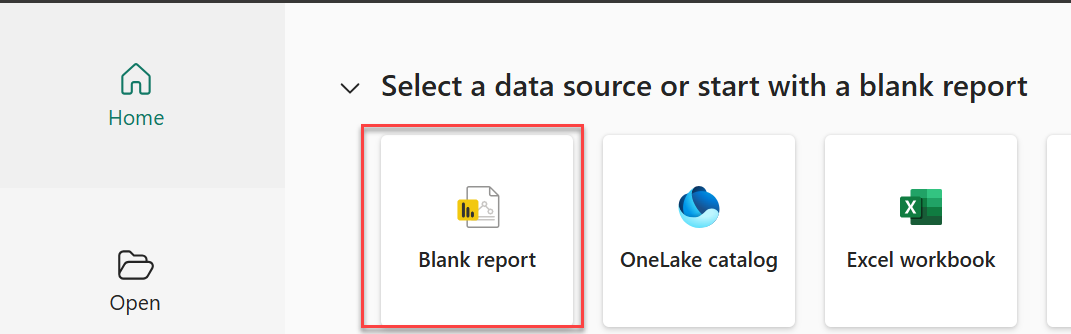
Open Power BI Desktop with a blank report.
Figure 9: Opening blank report in Power BI Desktop
Step 9: Refresh Sources in RASON DESKTOP Extension
Return to Visual Studio Code and the RASON Desktop extension and click the Refresh icon under Power BI Instances. Since a Blank Power BI Report was opened in Step 8, the Power BI Instance is labeled as “Untitled”. At least one Power BI Instance must be available to receive the export.
Figure 10: Refreshing Sources in RASON DESKTOP Extension.

Step 10: Export Results
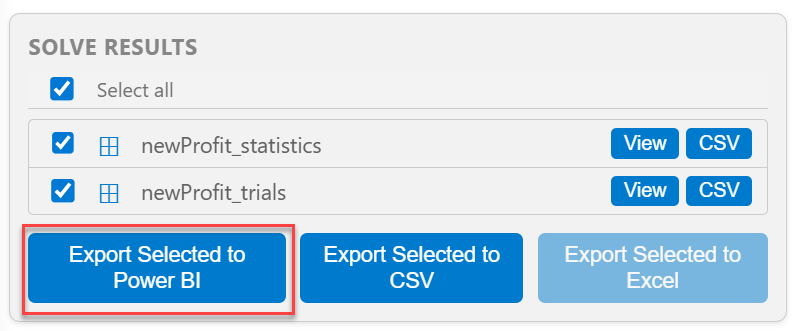
After running the simulation model in Visual Studio Code, the results can be exported to Power BI for visualization and analysis. This allows you to view and present the simulation results using Power BI tables, charts, and other report elements. Under Solver Results in the RASON Console, select the results to export, in this case newProfit_statistics and newProfit_trials, then click, Export Selected to Power BI.
Figure 11: Exporting model results to Power BI.
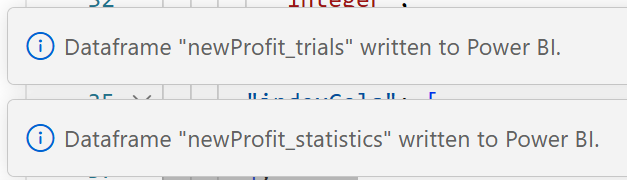
Notice in the bottom right corner, messages indicating the export was successful.
Figure 12: Export successful.
Step 11: Viewing Exported Results in Power Bi
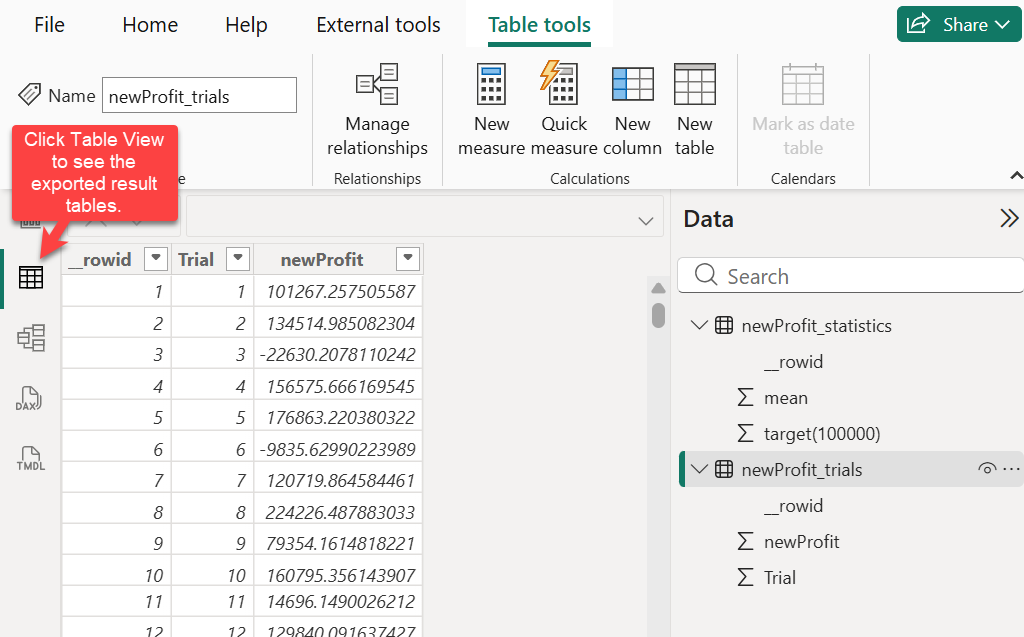
Switch to Power BI Desktop to view the imported data. The exported results are added to the report as tables. Click Table View on the left menu and then select the Table to view in the Data pane.
Click Refresh on the Power BI Home tab.
Figure 13: Click Refresh on the Power BI Home tab
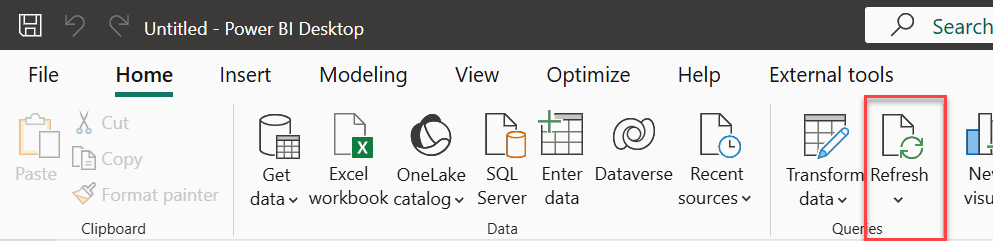
Figure 14: Tables containing exported uncertain function statistics and trial values
These results can be further explored using charts and other Power BI visuals to better understand the model’s output and communicate insights.
Next: Export the Entire RASON Model to Power BI
Continue to the next topic to export the full RASON model to a Power BI report, so the model can be run and reviewed directly from Power BI.