
RASON Desktop can also import input values directly from a Microsoft Excel workbook. This is useful when model inputs are maintained in Excel tables or named ranges. Return to the ProductMix4.json example used in the previous section. In this model, the profits array contains the unit profit for each product, and the inventory array contains the available inventory for each part type. These two arrays provide the input values needed to calculate the optimal number of TVs, stereos, and speakers to build.
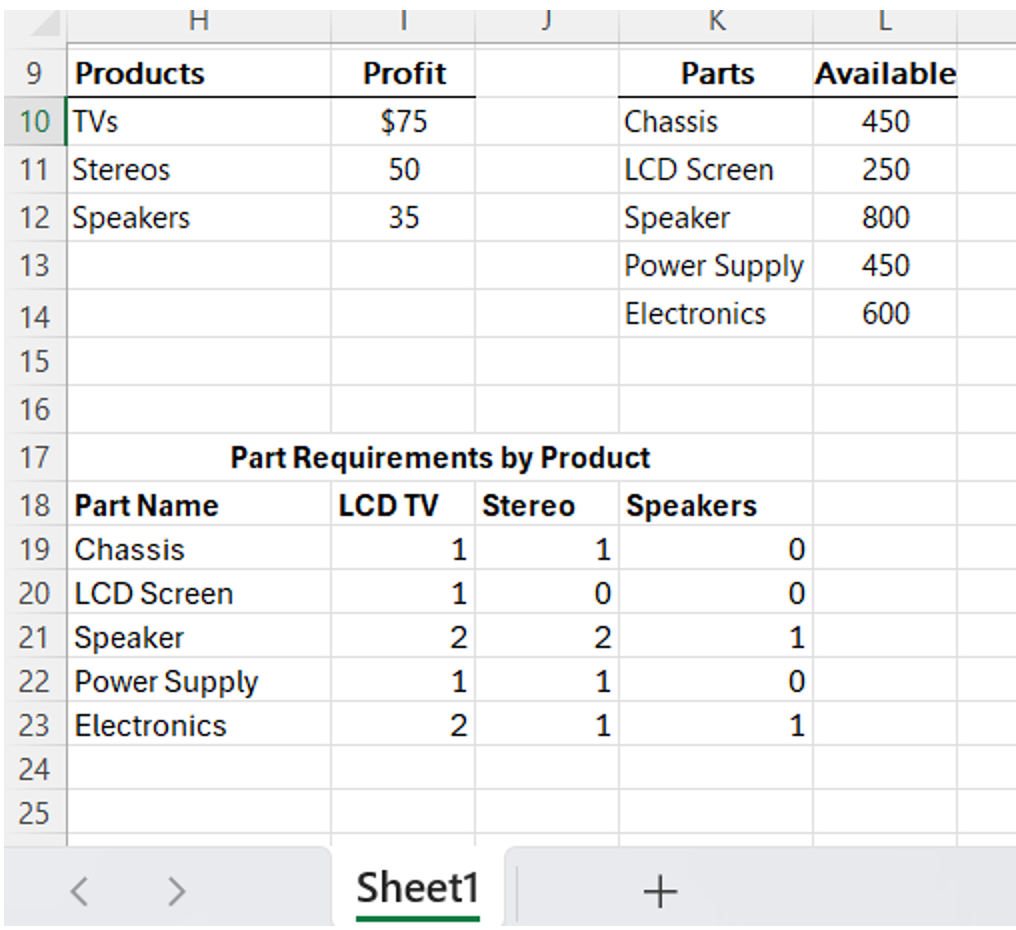
In Excel, create three input tables: one for product profits, one for parts inventory and one for parts inventory. The profits table should contain the profit values for TVs, stereos, and speakers. The parts inventory table should contain the available quantities for Chassis, Screens, Speakers, Power Supply, and Electronics.
Here is an example of how the data could be entered into the Excel workbook. Notice that this example also includes the Part Requirements by Product table. An example Excel workbook is installed with the RASON Runner examples and can be found in the following folders: C:\ProgramData\Frontline Systems\Examples\RasonRunner and C:\ProgramData\Frontline Systems\Examples\Power BI. Screenshots of the three tables in Power BI are shown below.
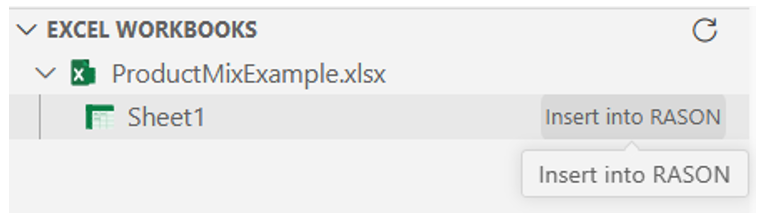
Save the Excel workbook. Then return to Visual Studio Code and refresh Excel Workbooks in the RASON Desktop extension. Click the down arrow next to the open workbook, ProductMixExample.xlsx to expand the workbook. Click Insert into RASON to the right of Sheet1.
A dialog similar to the one below opens in Excel. Select cells H9:I12.
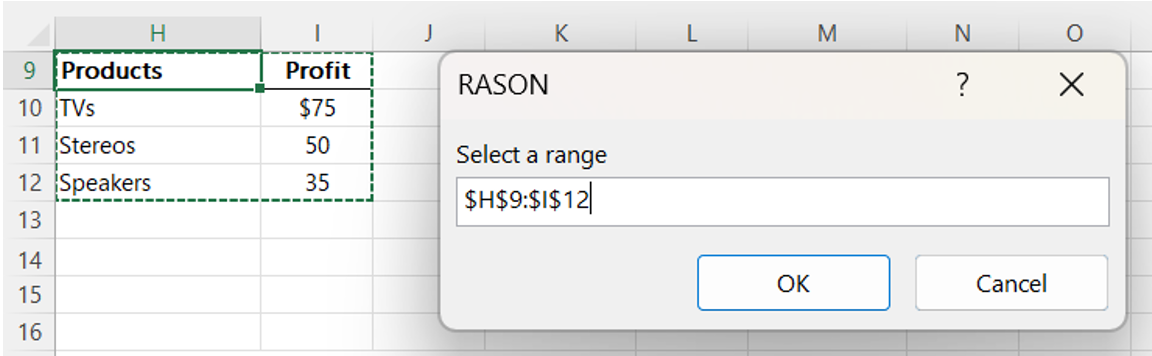
Click OK.
The following code is entered into the datasouces section of the RASON model.
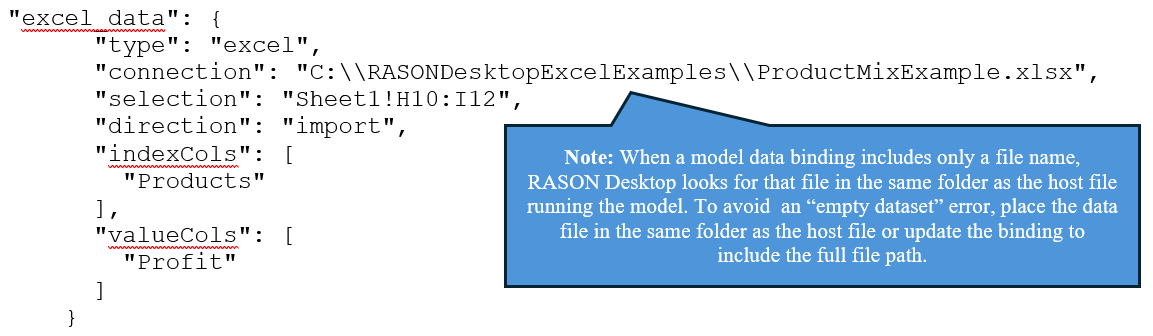
"type": Either"PowerBI"or"excel"."connection": Specifies the path where the workbook is saved. Note that the workbook may not be saved on a Microsoft OneDrive account."selection": Excel table or named range to import. Notice that the header row is NOT included here. However, it’s important to include the header when selecting the Excel range so RASON Desktop can generate the correct indexCols and valueCols properties.- Note: When a model data binding specifies only a file name and does not include a full file path, RASON looks for the file in the same folder as the host file being used to run the model. For example, when solving from Excel, the referenced file must be stored in the same folder as the .xlsx workbook. If the data file is located in that folder, the model solves successfully. If the data file is moved to a different folder, RASON cannot locate it and returns an error.
"direction": Either"import"or"export"."indexCols": Identifies the row labels or index values in the imported Excel range. In this example, the Products column is being used as the row index so RASON knows each imported profit value is associated with a specific product: TVs, Stereos and Speakers."valueCols": Specifies which column contains the actual data values to import into the model. This means the Profit column contains the numeric values to be imported: 75, 50 and 35.
Once again click Insert into RASON to the right of Sheet1 under Excel Workbooks. This time enter the range, K9:L14, to enter the available parts inventory.
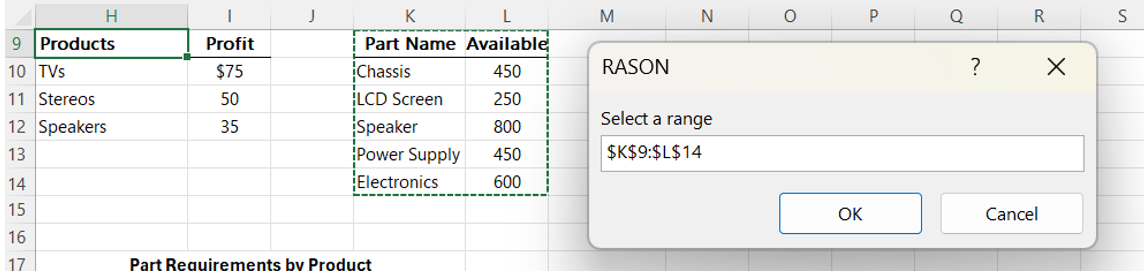
The following code is inserted into the datasources section of the RASON Model, beneath excel_data.
"excel_data_1": {
      "type": "excel",
      "connection": "C:\\RASONDesktopExcelExamples\\ProductMixExample.xlsx",
      "selection": "Sheet1!K10:L14",
      "direction": "import",
      "indexCols": [
        "Parts"
      ],
      "valueCols": [
        "Available"
      ]
    }
Once more click Insert into RASON to the right of Sheet1 under Excel Workbooks and this time enter the range, I19:K23, to enter the required parts per product table. Notice that no headers are included in the selection. This is because the parts data object must be imported as a numeric matrix, not as a table with row or column labels. The model uses this matrix in the MMULT(parts, x) constraint calculation, so the selected range should contain only the numeric part requirements for each product.
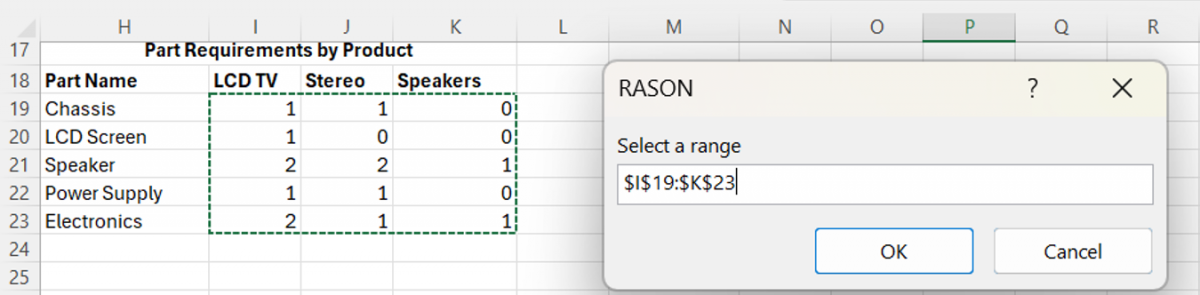
The following code is inserted into the datasources section of the RASON Model, beneath excel_data_1.
"excel_data_2": {
      "type": "excel",
      "connection": "C:\\RASONDesktopExcelExamples\\ProductMixExample.xlsx",
      "selection": "Sheet1!I19:K23",
      "direction": "import"
    }
As with the Power BI import process, RASON Desktop also inserts generated binding entries at the bottom of the data section. These generated entries need to be connected to the original RASON data objects used by the model. Then the original data entries can be removed.
     "excel_data_binding": {
      "binding": "excel_data"
    },
    "excel_data_1_binding": {
      "binding": "excel_data_1"
    },
    "excel_data_2_binding": {
      "binding": "excel_data_2"
    }
Simply these existing entries to:
"profits": {
      "binding": "excel_data"
    },
    "inventory": {
      "binding": "excel_data_1"
    },
    "parts": {
      "binding": "excel_data_2"
    }
And then remove the existing data entries, leaving the data section as:
"data": {
    "profits": {
      "binding": "excel_data"
    },
    "inventory": {
      "binding": "excel_data_1"
    },
    "parts": {
      "binding": "excel_data_2"
    }
  },
Now:
- the excel_data Excel data source is bound to the profits array. The profits array is used in the objective function calculation.
"objective": {
    "comment": "...",
    "total": {
      "formula": "sumproduct(x, profits)",
      "type": "maximize",
      "finalValue": []
    }
  }
- the excel_data_1 Excel data source is bound to the inventory array. The inventory array is used as the upper bounds for all five constraints.
"constraints": {
    "comment": "5 constraints are created in this section.",
    "num_used": {
      "comment": "…
      "dimensions": [
        5
      ],
      "formula": "MMULT(parts, x)",
      "lower": 0,
      "upper": "inventory"
    }
  },
- the excel_data_2 Excel data source is bound to the parts array. The parts array is also used in the constraints construction.
Click Solve RASON Model. RASON Desktop imports the updated profit, inventory and parts per product values from Excel, solves the Product Mix optimization model, and updates the model results. After the workbook has been connected to the model, users can update the Excel input tables and solve again without manually editing the RASON model code. Visual Studio Code is only needed again if the model structure changes, such as adding new variables, formulas, constraints, or exported results.