
Simulation
A model builder creates a RASON simulation model in RASON Desktop, then packages it into a Power BI report or Excel workbook. End users can then run the simulation directly inside their familiar environment, without ever opening RASON Desktop.
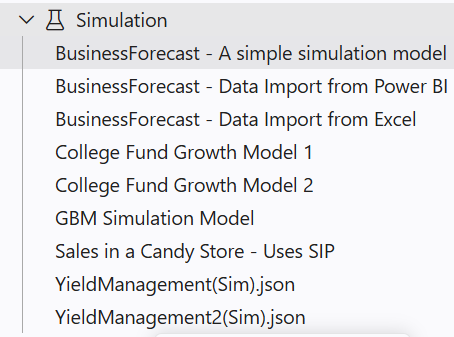
To open the example model in RASON Desktop, click Examples → Simulation and choose Business Forecast - Import from Power BI or Excel
End-to-End Workflow
Step 1: Import Data & Run the Simulation
- Builder — Power BI
Import model data from a Power BI report and run the RASON simulation model. - Builder — Excel
Import model data from an Excel workbook and run the RASON simulation model.
Step 2 (Shared): Export the Model
The following demo applies to both the Power BI and Excel tracks:
Builder — Export the RASON model to Power BI or Excel
Package the RASON simulation model into a Power BI report or Excel workbook so end users can run it without opening RASON Desktop.
Step 3: Run with RASON Runner
- End user — Power BI
Open the Power BI report and run the embedded RASON simulation model using RASON Runner — no RASON Desktop required. - End user — Excel
Open the Excel workbook and run the embedded RASON simulation model using RASON Runner — no RASON Desktop required.