
Figure 1: RASON Desktop Visual Studio Code Extension.
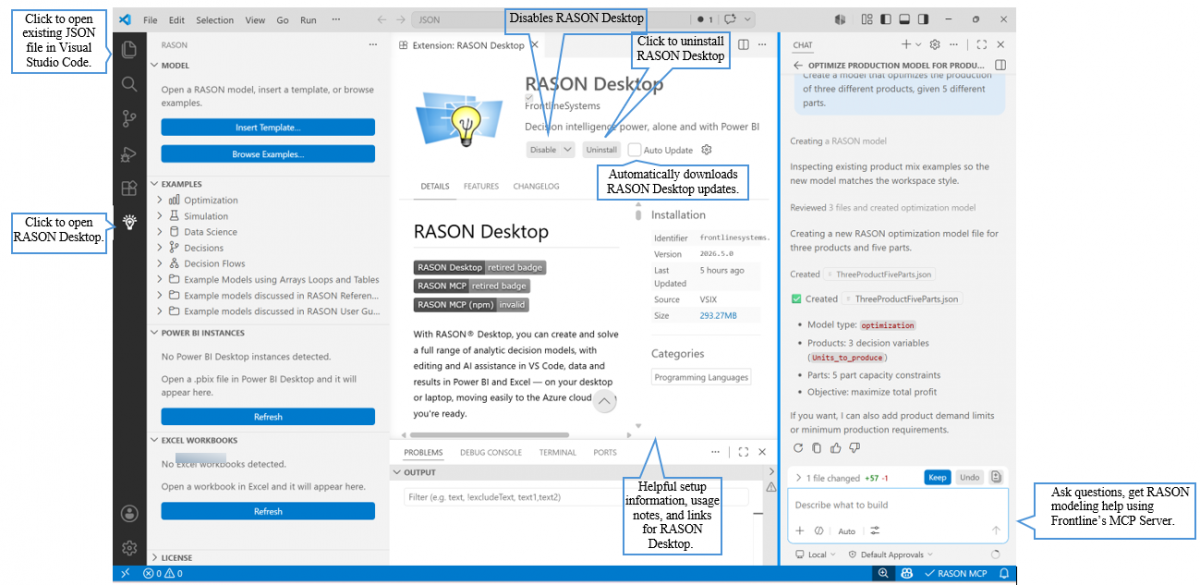
- Use the RASON Desktop icon in the Visual Studio Code activity bar to open the RASON Desktop extension. The Explorer icon can be used to open a folder containing an existing JSON model file in Visual Studio Code. Once a model is open, the RASON Desktop panel displays information about the current model and available connected applications.
- On the right side of the workspace, Frontline’s MCP Server provides AI-assisted RASON modeling help. You can ask questions, enter prompts, or review past MCP Server questions and responses from the Sessions area.
- The main extension page in the middle of the workspace includes setup information, usage notes, and links for RASON Desktop. From this page, you can also uninstall the extension or enable Auto Update, which automatically downloads RASON Desktop updates.