
See Exporing Simulation Results to Power BI for information on exporting results to Power BI.
Now that the model results have been exported to Power BI and solved directly within the report, the same workflow can also be applied in Excel. This allows users to work with the same RASON model and results in a familiar spreadsheet environment, where inputs, outputs, and calculated results can be reviewed, adjusted, and analyzed using Excel’s native tools. The next section walks through exporting the model results to Excel and solving the model from within the workbook.
Step 15: Export Results to Excel
With the model now successfully exported and visualized in Microsoft Power BI, we can turn our attention to Microsoft Excel. While Power BI emphasizes interactive dashboards and reporting, Excel provides a more flexible, hands-on environment for exploring and analyzing results. In the next section, you’ll see how to export the same results to Excel, where you can work directly with the underlying data, perform additional calculations, and further customize your analysis.
Open Excel with a blank workbook, then click back to Visual Studio Code and click Refresh for Excel Workbooks.
Figure 21: Refresh Excel Workbooks

Then click Export Selected to Excel on the RASON Desktop Console tab.
Figure 22: Exporting model results to Excel
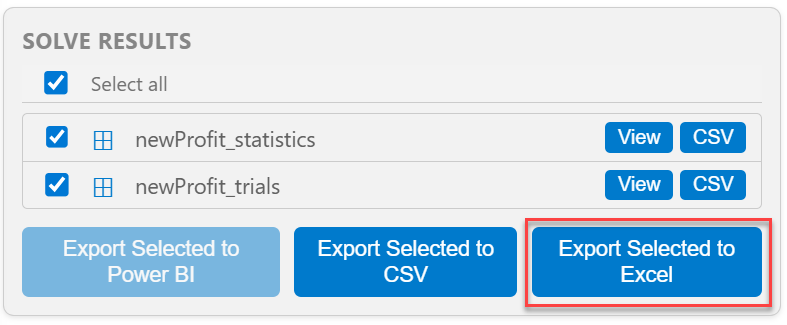
Notice the Excel logo starts to blink. This is because Excel is waiting on input. Click back to Excel to find to find the first of two dialogs, one dialog for each Solver Result exported to Excel.
Figure 23: RASON Export newProfit_statistics
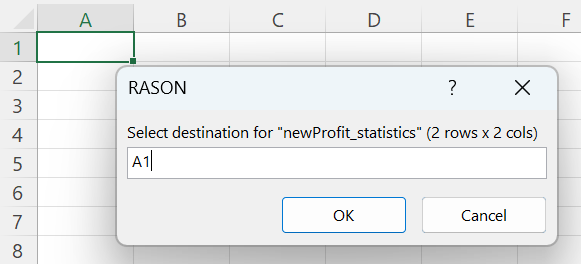
Select a cell for the destination, such as A1, and click OK. The mean for newProfit_statistics is entered into cells A1:B2 and a new dialog appears.
Figure 24: RASON Export newProfit_trials
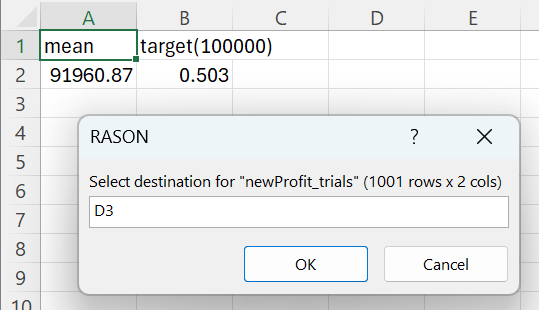
Step 16: Viewing Exported Results in Excel
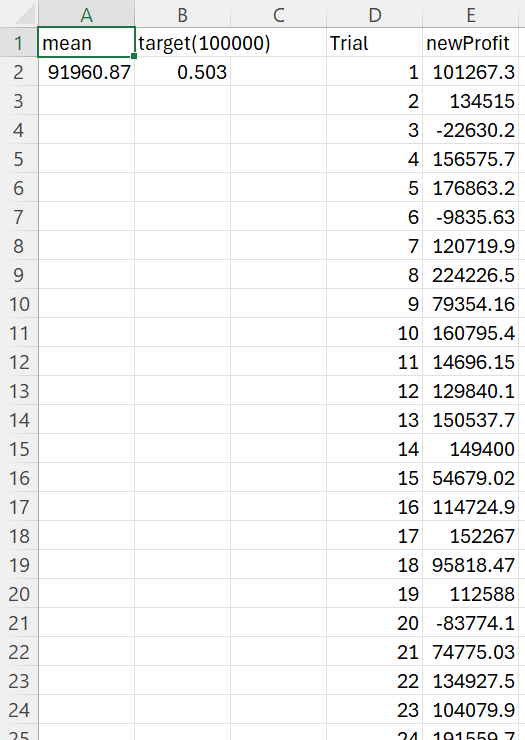
Once all the results have been exported, the Excel worksheet should look similar to this one.
Figure 25: Solver results exported to an Excel worksheet.
Save and close this workbook. This example saves the workbook using the name BusinessForecastExample.xlsx.
These results can be further explored using charts and other visuals to better understand the model’s output and communicate insights.
While exporting results allows you to visualize a solved model, RASON Desktop also enables you to export the full model to Excel (or Power BI), where it can be executed directly within Excel (or a Power BI Report). This distinction is important: exporting results provides a static snapshot of a completed simulation, while exporting the model allows the simulation to be re-run inside Excel or Power BI with different inputs.
Next: Export the Entire RASON Model to Excel
Continue to the next topic to export the full RASON model to the Excel workbook, so the model can be run and reviewed directly from Excel.