
License Pane and Solve RASON Model
The License pane shows the current user and license type, with options to manage, refresh, log in, or log out. To run the open model, choose a solver mode, then click Solve RASON Model. The status bar reports syntax errors and warnings, while the Problems pane and Output window provide issue details, solver messages, and results.
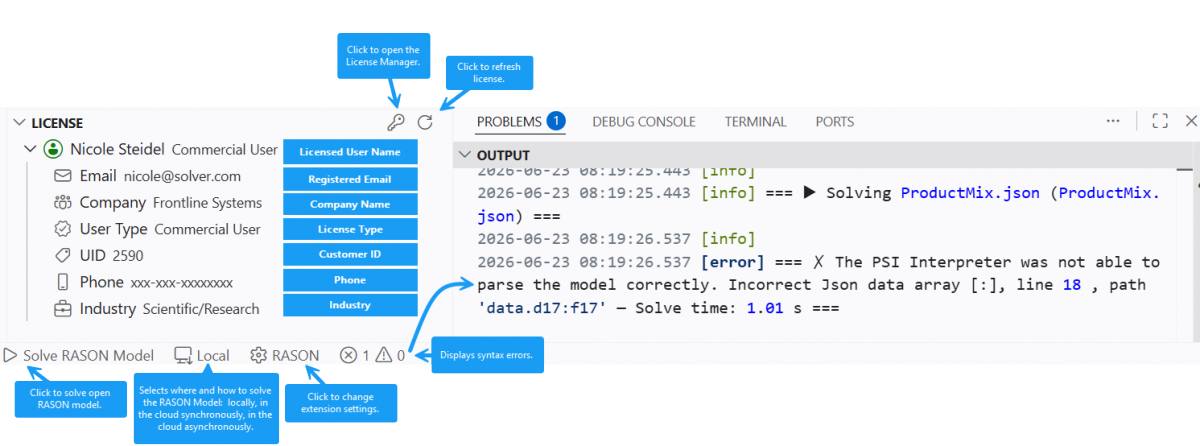
The License Pane
The License pane displays the current licensed user and license type. Use it to confirm your sign-in status before solving, especially when using a cloud solver mode.
- Open License Manager — Manage your license, log in, or log out.
- Refresh — Update the displayed license status.
Solving a RASON Model
Click Solve RASON Model, or use the Solve RASON Model command, to run the currently open model. Before solving, use the solver-mode selector to choose where and how the model should run.
| Solver Mode | When to Use It |
|---|---|
| Local | Runs the model on your machine using the bundled solvers. This is the default mode and requires no cloud connection. |
| Cloud Sync | Submits the model to the cloud and waits for the result in the current session. Best for models expected to solve quickly enough to wait for the response (typically under 30 seconds). |
| Cloud Async | Submits larger or longer-running models to the cloud; RASON Desktop checks back for completion. This lets long solves continue without requiring an immediate response. |
Note: Both cloud modes require a valid cloud license and authentication token. If cloud solving is not configured, run
RASON: Set Auth Tokenbefore selecting a cloud solver mode.
Status Bar, Problems Pane, and Output
The status bar displays the number of detected syntax errors and warnings. Click the error or warning indicators to open the Problems pane, where you can review issues found in the workspace. Solver messages and returned results appear in the Output window.