
Before importing data into the RASON model, open ProductMixPowerBI.pbix in Microsoft Power BI Desktop. This Power BI report contains the three input tables used by the model: profits, partsInventory and tableParts.
The example Power BI report is installed with the RASON Runner examples and can be found in the following folders: C:\ProgramData\Frontline Systems\Examples\RasonRunner and C:\ProgramData\Frontline Systems\Examples\Power BI. Screenshots of the three tables in Power BI are shown below.
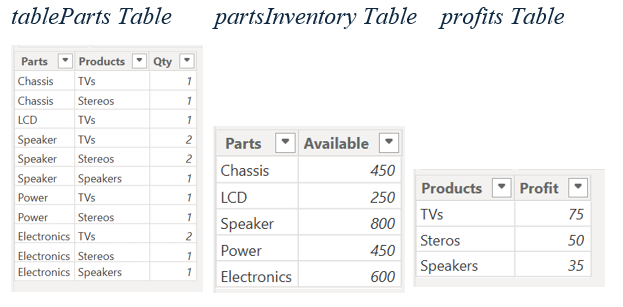
After opening ProductMixPowerBI.pbix, return to RASON Desktop in Visual Studio Code and open ProductMixPowerBI.json by clicking Examples -- Optimization -- Linear Optimizations. This model demonstrates how to replace static Product Mix data with imported Power BI tables.
The datasources section reads products, profits, inventory, and part requirements from Power BI. The indexCols and valueCols properties explicitly define how each imported table should be interpreted, which is especially important when importing data from Power BI. The model then uses variables, formulas, constraints, and an objective function to calculate the optimal product mix and return selected solved values through the finalValue properties.
ProductMixPowerBI.json
{
"modelName": "productMixPowerBI",
"modelDescription": "Product Mix RASON Optimization Example 4",
"modelType": "optimization",
"datasources": {
"profits_data": { "type": "PowerBI",
"connection": "pbix=ProductMixPowerBI",
"selection": "EVALUATE SELECTCOLUMNS('profits', \"Products\", 'profits'[Products], \"Profit\", 'profits'[Profit])",
"indexCols": ["Products"],
"valueCols": ["Profit"],
"direction": "import"
},
"inventory_data": {
"type": "PowerBI",
"connection": "pbix=ProductMixPowerBI",
"selection": "EVALUATE SELECTCOLUMNS('partsInventory', \"Parts\", 'partsInventory'[Parts], \"Available\", 'partsInventory'[Available])",
"indexCols": ["Parts"],
"valueCols": ["Available"],
"direction": "import"
},
"parts_data": {
"type": "PowerBI",
"connection": "pbix=ProductMixPowerBI",
"selection": "EVALUATE SELECTCOLUMNS('tableParts', \"Parts\", 'tableParts'[Parts], \"Products\", 'tableParts'[Products], \"Qty\", 'tableParts'[Qty])",
"indexCols": ["Parts", "Products"],
"valueCols": ["Qty"],
"direction": "import"
}
}
}
"type": "PowerBI",
"connection": "pbix=ProductMixPowerBI",
"selection": "EVALUATE SELECTCOLUMNS('profits', \"Products\", 'profits'[Products], \"Profit\", 'profits'[Profit])",
"indexCols": ["Products"],
"valueCols": ["Profit"],
"direction": "import"
},
"inventory_data": {
"type": "PowerBI",
"connection": "pbix=ProductMixPowerBI",
"selection": "EVALUATE SELECTCOLUMNS('partsInventory', \"Parts\", 'partsInventory'[Parts], \"Available\", 'partsInventory'[Available])",
"indexCols": ["Parts"],
"valueCols": ["Available"],
"direction": "import"
},
"parts_data": {
"type": "PowerBI",
"connection": "pbix=ProductMixPowerBI",
"selection": "EVALUATE SELECTCOLUMNS('tableParts', \"Parts\", 'tableParts'[Parts], \"Products\", 'tableParts'[Products], \"Qty\", 'tableParts'[Qty])",
"indexCols": ["Parts", "Products"],
"valueCols": ["Qty"],
"direction": "import"
}
}
}
How the Model Imports Power BI Data
This RASON model, named productMixPowerBI, is an optimization model that imports Product Mix data directly from a Power BI report named ProductMixPowerBI. The modelName property identifies the model, modelDescription describes the purpose of the example, and modelType is set to optimization, indicating that RASON will solve this as an optimization model.
The datasources section defines the external Power BI data used by the model. Three datasources are created: profits_data, inventory_data, and parts_data. Each datasource uses "type": "PowerBI" to indicate that the data comes from Power BI, and the connection property identifies the Power BI report by using "pbix=ProductMixPowerBI". The selection property contains a DAX EVALUATE SELECTCOLUMNS query that selects the required columns from the Power BI tables. The direction property is set to "import", meaning the data is read from Power BI into the RASON model.
Note: If data is imported from the same Power BI report where results are exported, the connection property may contain only the filename. However, if a model uses an external data file (CSV, Excel, etc.), the file paths must be absolute paths. If an absolute path is not specified, the external data files will not be found and an error will occur.
Datasource Properties
The profits_data datasource imports the product profit table from Power BI. The selection query retrieves the Products and Profit columns from the Power BI table named profits. The indexCols property is set to ["Products"], which tells RASON that Products identifies the product dimension. The valueCols property is set to ["Profit"], which tells RASON that Profit contains the numeric values used by the model.
The inventory_data datasource imports the available inventory for each part. Its selection query retrieves the Parts and Available columns from the partsInventory table in Power BI. The indexCols property is set to ["Parts"], so each inventory value is associated with a specific part. The valueCols property is set to ["Available"], which contains the available quantity for each part.
The parts_data datasource imports the quantity of each part required to manufacture each product. Its selection query retrieves Parts, Products, and Qty from the tableParts table in Power BI. This datasource uses two index columns, ["Parts", "Products"], because each quantity value is identified by both a part and a product. The valueCols property is set to ["Qty"], which contains the amount of each part required for each product.
Why indexCols Matters
- The indexCols property tells RASON which columns define the dimensions or labels of an imported table. This is especially important when importing data from Power BI because RASON must know which columns identify the data and which columns contain the numeric values used in the model. For example, in the profits_data datasource, Products is listed under indexCols because it identifies each product, while Profit is listed under valueCols because it contains the numeric profit values. Without explicit indexCols, RASON may treat label columns as ordinary data values, which can cause dimension mismatches, incorrect bindings, or solve errors. Explicitly defining indexCols makes the import more reliable, especially when the same table is used across different Power BI reports that may return data differently.
Variables, Data Bindings, Formulas, Constraints, and Objective
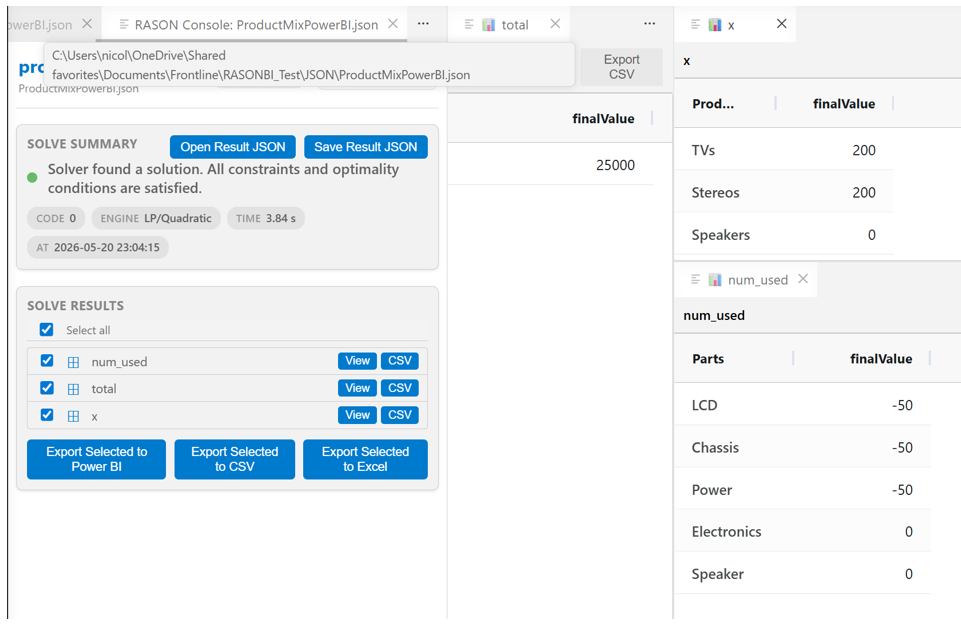
The variables section defines the model’s decision variables. The variable array x represents the number of each product to produce. The dimensions property is set to ["Products"], which creates one decision variable for each product in the imported product list. The value property sets the initial value of each variable to 0, and the lower property sets the lower bound to 0, preventing negative production quantities. The finalValue property returns the solved values of x, and the indexValue property returns the product labels associated with each final value.
The data section binds model names to the imported Power BI datasources. The profits data object uses "binding": "profits_data", the inventory data object uses "binding": "inventory_data", and the parts_data data object uses "binding": "parts_data".
The formulas section creates a derived data object named pivot_parts. Its formula property uses PIVOT(parts_data, { 'Products' }, { 'Parts' }) to reshape the imported parts table into the matrix format required by the production constraints.
The constraints section defines the model’s inventory limits. The constraint array num_used is dimensioned by ["Parts"], creating one constraint for each part. Its formula property uses MMULT(pivot_parts, x) - inventory[] to calculate the amount of each part used and subtract the available inventory. The upper property is set to 0, requiring part usage to be less than or equal to available inventory. The finalValue property returns the final constraint values, and the indexValue property returns the associated part labels.
The objective section defines the model’s goal. The objective function total uses the formula sumproduct(x, profits[]) to multiply each product’s production quantity by its unit profit and sum the values. The type property is set to "maximize", which tells RASON to find the production plan that produces the highest possible profit. The finalValue property ensures that the final objective value is returned in the results.
Why finalValue Matters
- The
finalValueproperties control which solved values are included in the model output. In this example,finalValueis used for the decision variables x, the constraint values num_used, and the objective function total. This allows the final production quantities, part usage values, and total profit to be viewed, exported, or written back to Power BI or Excel after the solve.
Solve the Model
Click Solve RASON Model. RASON Desktop imports the updated profits and inventory values from Power BI, solves the Product Mix optimization model, and updates the model results.
Using the Exported Power BI Report
Refer to the previous chapter for the full step-by-step process used to export a RASON model to a Power BI report. Once the model has been exported, the report can be used as a complete solving environment. Users can change input values in Power BI, solve the model by clicking External Tools > RASON Solve, and review the updated results without returning to Visual Studio Code. Visual Studio Code is only needed again if the underlying RASON model structure must be changed, such as adding new variables, constraints, formulas, data sources, or imported data.