
In RASON Runner, your license, either Model Builder or Runtime, is associated with you and may be used on more than one PC. For example, you can run RASONRunnerSetup.exe to install the desktop software on your office PC, your company laptop, and your PC at home. However, only you can use RASON Runner, and only on one of these computers at a time. It is unlawful to share your license with another human user.
The first time you run RASON Runner in Power BI or Excel after installing the software on a new computer, you will need to log in. In Power BI, click External Tools > RASON Login. In Excel, click RASON > Login. Enter the email address and password that you used to register on Solver.com.
After you log in, RASON Runner remembers your identity, so you do not need to log in every time you start Power BI or Excel and open the External Tools or RASON tabs.
You can log in and log out at any time by clicking External Tools > RASON Login in Power BI or RASON > Login in Excel. If you share a single physical computer with other RASON Runner users, be careful to log in with your own email address and password, and log out when you are done. Otherwise, other users could use your allotted CPU time or number of solves.
When you move from one computer to another, you should log out on one computer and log in on the other. As a convenience, if you log in to RASON Runner on a new computer without logging out on the old computer, RASON Runner will notify you and offer to automatically log you out on the other computer.
Uninstalling the Software
To uninstall RASON Runner, re-run the RASONRunnerSetup.exe program. You will be asked to confirm that you want to remove the software.
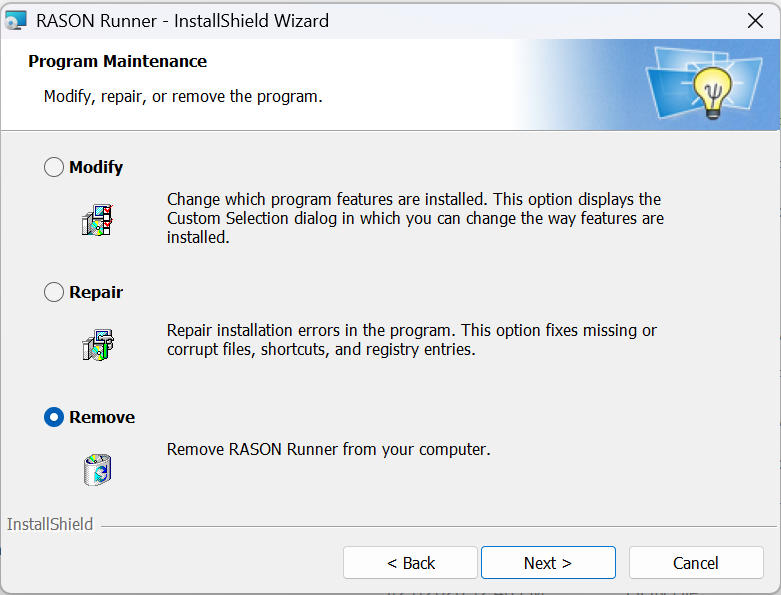
You can also uninstall RASON Runner from Windows Control Panel. From the Start menu, open Control Panel, then open Programs and Features or Add/Remove Programs.
In the list of currently installed programs, scroll down until you find RASON Runner. Click Uninstall/Change or Add/Remove, then click OK in the confirmation dialog to uninstall the software.